A complete setup guide for using the high-quality, lightweight "Kokoro" TTS model as a Web API.
Kokoro-FastAPI is a
project that provides the high-quality, lightweight TTS (Text-to-Speech) model "Kokoro" as an easy-to-use
Web API.
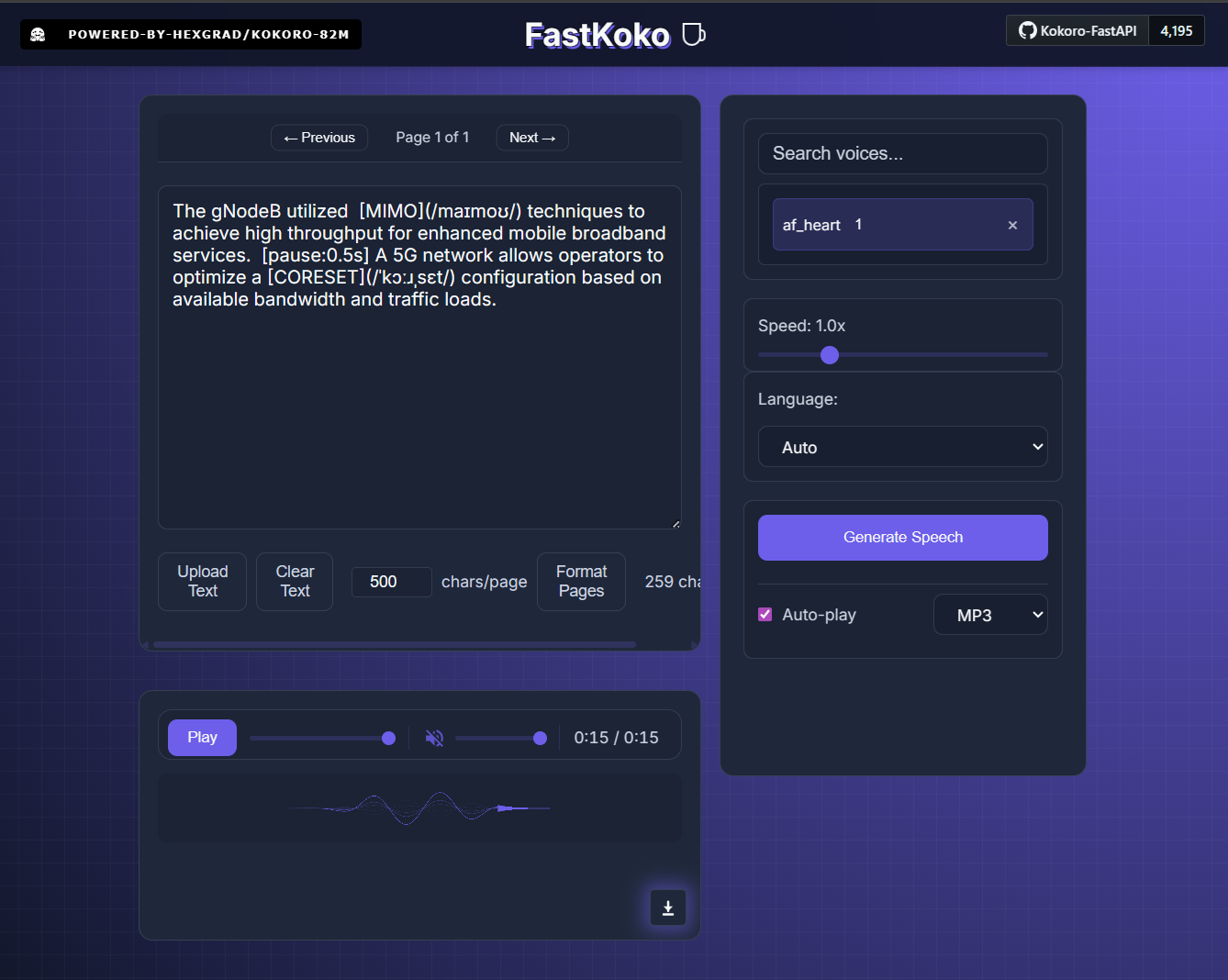
A key feature is not just reading text, but the ability to finely control pronunciation and
rhythm using Markdown-like syntax.
Using the control tags below allows for natural, human-like speech and precise reading of technical terminology.
[Word](/ipa/) to strictly define pronunciation
using IPA (International Phonetic Alphabet).[pause:seconds] tags to create silence of any
duration.Example text with control tags:
The gNodeB utilized [MIMO](/maɪmoʊ/) techniques to achieve high throughput for enhanced mobile broadband services. [pause:0.5s] A 5G network allows operators to optimize a [CORESET](/ˈkɔːɹˌsɛt/) configuration based on available bandwidth and traffic loads.
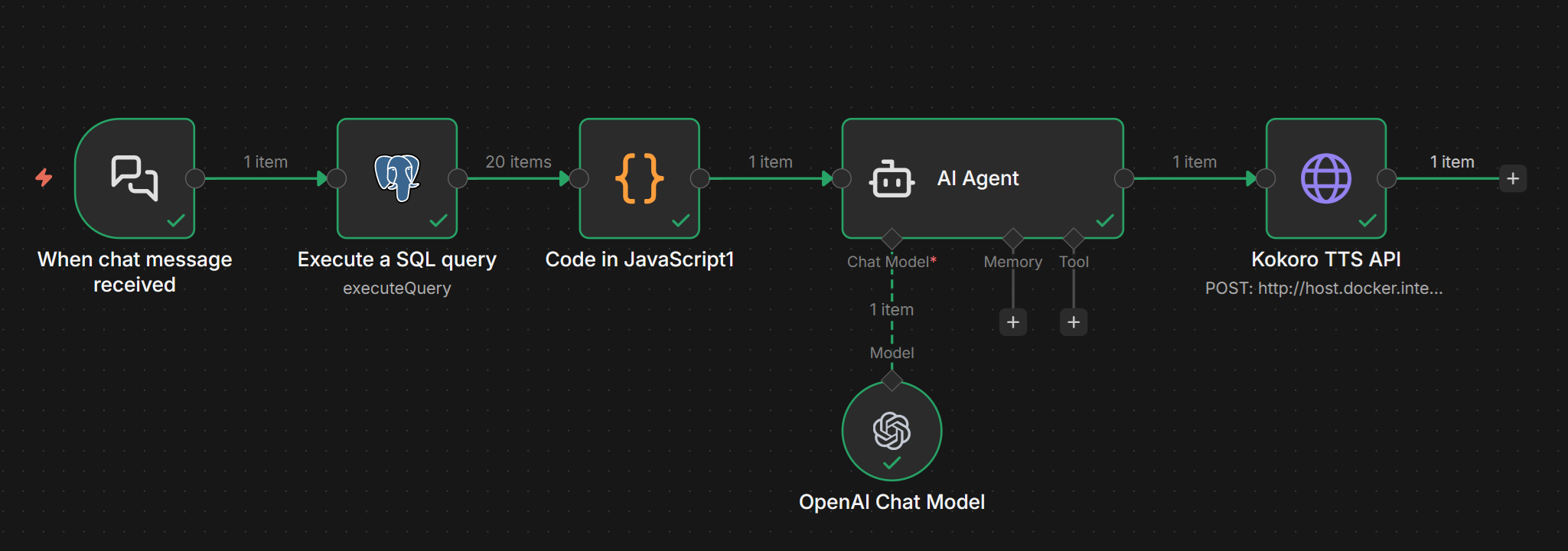
This API truly shines when combined with no-code tools like n8n or AI agents.
For instance, using an AI Agent node, you can automate complex processes to build a sophisticated voice
generation pipeline:
This guide explains how to run "Kokoro-FastAPI" on a Windows 11 environment.
Windows 11 Home does not include the necessary tools to run Linux by default. First, let's set up the foundation.
This is essential for running WSL2 and Docker.
This allows you to run Linux directly on Windows.
wsl --installRequired only if you want to accelerate performance using an NVIDIA GPU (GeForce, etc.).
The tool for managing containers (application execution environments).
Required to download the source code.
Choose the method that best fits your needs.
| Feature | Option 1: Use Pre-built Image (Recommended) | Option 2: Build from Source |
|---|---|---|
| Difficulty | ★☆☆ (Easy) | ★★☆ (Intermediate) |
| Best For | Quick start, users who want minimal hassle. | Developers, users who want to modify the code. |
| Process | Start with a single command. | Clone via Git and build locally. |
| Data Persistence | Model data is lost if the container is removed (requires re-download). | Easier to persist data via config files. |
The easiest method. Run this in Command Prompt or PowerShell.
【CPU Only】
docker run -p 8880:8880 ghcr.io/remsky/kokoro-fastapi-cpu:latest【With NVIDIA GPU】
docker run --gpus all -p 8880:8880 ghcr.io/remsky/kokoro-fastapi-gpu:latesthttp://localhost:8880 in your browser.
If new features are added, update to the latest version using these steps:
# For CPU
docker pull ghcr.io/remsky/kokoro-fastapi-cpu:latest

# For GPU
docker pull ghcr.io/remsky/kokoro-fastapi-gpu:latestdocker run command used above to start the
updated version.This method involves downloading the code to your local machine using Git.
git clone https://github.com/remsky/Kokoro-FastAPI.git
cd Kokoro-FastAPIcd docker/cpucd docker/gpuBuild and start the container with the following command:
docker compose up --buildhttp://localhost:8880.docker compose up -d.
git pull origin maindocker/cpu or docker/gpu
and run:docker compose up --buildThe --build flag ensures the container is rebuilt with the latest code.
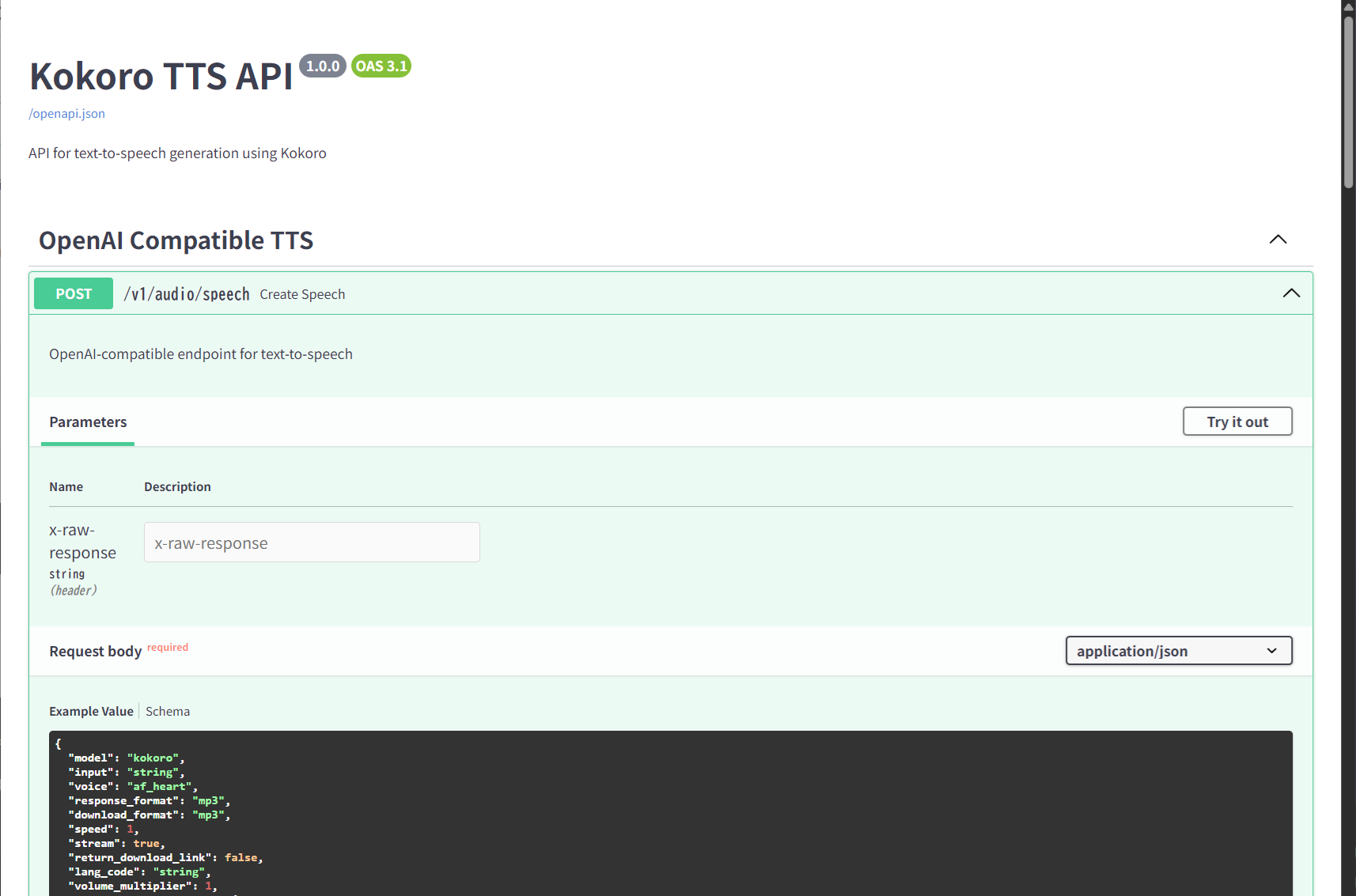
http://localhost:8880/docs to see the Swagger UI. You can test voice
generation directly using the "Try it out" button.
nvidia-smi in Ubuntu on WSL to
verify the GPU is recognized.Port already allocated error, check if another app is using port 8880,
or change the left-side port number in the command (e.g., -p 9000:8880).
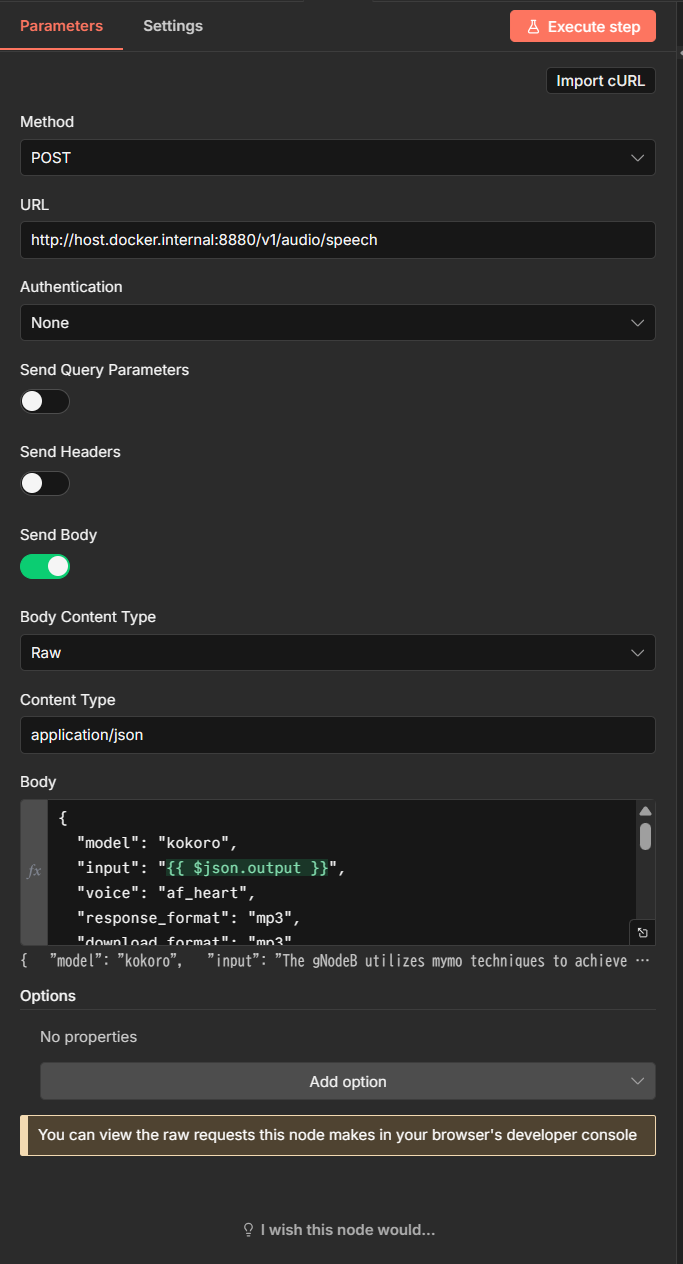
Here is an example configuration for calling Kokoro-FastAPI from n8n.
When communicating between Docker environments, typically use host.docker.internal as the
hostname.
http://host.docker.internal:8880/v1/audio/speech (※ Port 8880
is based on this guide. Adjust if you changed your port settings){
"model": "kokoro",
"input": "{{ $json.output }}",
"voice": "af_heart",
"response_format": "mp3",
"download_format": "mp3",
"speed": 1,
"stream": true,
"return_download_link": false,
"lang_code": "a",
"volume_multiplier": 1,
"normalization_options": {
"normalize": true,
"unit_normalization": false,
"url_normalization": true,
"email_normalization": true,
"optional_pluralization_normalization": true,
"phone_normalization": true,
"replace_remaining_symbols": true
}
}